
How to Speed Up Blender Render Times
Most slow renders are a settings problem, not a hardware problem. Here is what to change first, and what to buy only if that is not enough.

Super Admin
· 5 min read · 67 views
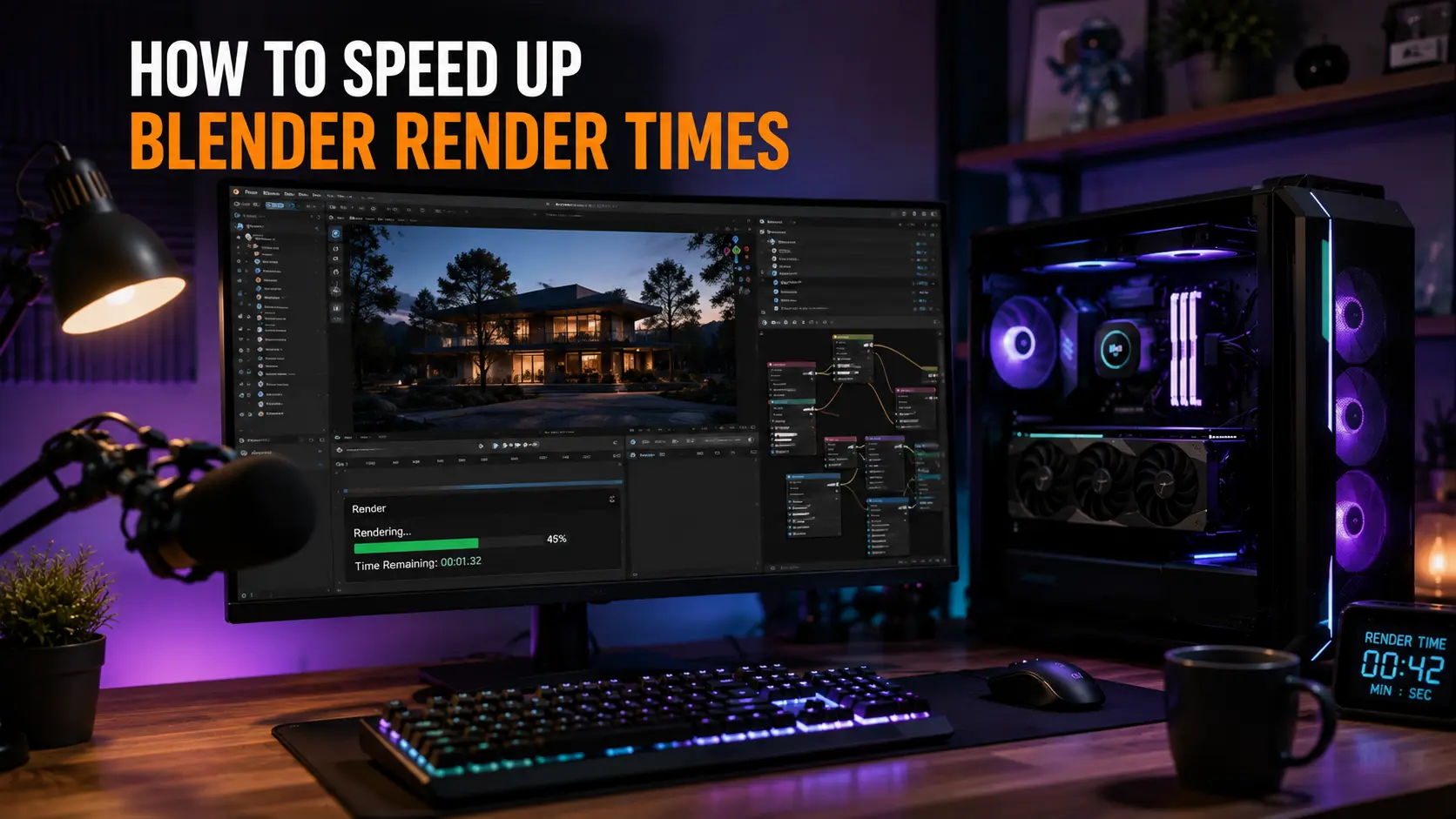
A render that takes all night is not always a sign you need a better graphics card. Most of the time it is a settings problem, and settings are free to change.
This guide covers what to try first, what the hardware actually buys you, and how to tell which of the two is holding you back.
Are you rendering on the right hardware?
Blender can render using your processor or your graphics card. For most scenes, the graphics card is dramatically faster.
This is the first thing to check, because plenty of people render on the processor without realising it. In Blender the setting is under Preferences, then System, then Cycles Render Devices. Pick CUDA or OptiX for an NVIDIA card, or HIP for an AMD one, then set the scene to use GPU Compute.
If you have an NVIDIA card, choose OptiX over CUDA. It uses the dedicated ray tracing hardware and is usually the faster of the two.
What the hardware actually buys you
These are estimates from our render performance calculator, in Blender GPU mode with 32 GB of memory and an NVMe drive. Real times vary enormously with lighting, materials and sample count — treat these as relative, not absolute.
| Graphics card | Simple product shot | Interior scene | Character with hair | Complex scene |
|---|---|---|---|---|
| RTX 5060 (8 GB) | 8s | 25s | 42s | 101s |
| RTX 5070 (12 GB) | 5s | 15s | 25s | 59s |
| RTX 5070 Ti (16 GB) | 4s | 12s | 19s | 46s |
| RTX 5090 (32 GB) | 3s | 9s | 15s | 36s |
The pattern is worth noting. Going from the 5060 to the 5090 is roughly a threefold improvement, and the gap widens as scenes get heavier. But it is a threefold improvement for many times the price, which is why the settings below matter so much.
Settings that cut render time
Lower your sample count first
Samples are how many light paths Blender traces per pixel. More samples means less noise and more time. The relationship is roughly linear: halve the samples, halve the time.
Most people use far more than they need. Start low and increase only until the noise stops bothering you.
Turn on denoising
Denoising cleans up a noisy render afterwards. With it enabled you can drop your sample count substantially and still get a clean image. This is the single biggest time saving available in Cycles, and it is one checkbox.
Set a sensible clamp
Very bright single pixels — fireflies — take a lot of samples to resolve. Clamping indirect light caps their brightness and removes them almost entirely, at a small cost in realism.
Reduce light bounces
The default bounce count is generous. Most interior scenes look the same at four bounces as at twelve, and render considerably faster. Drop it and compare.
Use Eevee where you can
Cycles traces light properly and is slow. Eevee approximates and is fast. For animation, previews, stylised work and plenty of finished shots, Eevee is good enough and many times quicker.
VRAM is the cliff edge
Everything above is a gradual trade-off. This one is not.
If your scene fits in your graphics card's memory, it renders at full speed. If it does not fit, it spills into system memory, and the render slows down dramatically — not by a percentage, by a large multiple. Some setups refuse to render at all.
Our render calculator warns when a scene approaches roughly 80% of your card's memory, because that is where trouble starts.
Ways to stay under it:
- Reduce texture sizes. A 4K texture on an object that fills a tenth of the frame is wasted memory. This is usually the biggest saving.
- Use instances for repeated objects rather than copies. A thousand instanced trees cost roughly one tree.
- Apply modifiers before rendering where you can.
- Split the scene into layers and composite them afterwards.
If you are choosing a card for rendering, this is why memory deserves as much weight as speed. The GPU comparison tool shows both side by side.
Memory and storage
32 GB of system memory is the sensible floor for complex scenes. Large textures and geometry have to be prepared in system memory before they reach the card, and running short slows everything down. Check compatibility with the RAM compatibility checker.
Storage matters less for the render itself but a great deal for asset loading. A hard drive scores half what an NVMe drive does in our model, and you feel that every time you open a heavy project.
Animation is a different calculation
A single frame taking 30 seconds sounds fine. A thousand frames at 30 seconds is over eight hours, and a thousand frames is only about 42 seconds of footage at 24fps.
For animation, every second you save per frame is multiplied by the frame count. That changes the maths completely — a setting that saves 20% is worth far more here than it is on a still image, and it is usually worth spending an hour optimising before you start the render.
Keep the machine cool
A long render holds your graphics card at full load for hours. If the case cannot move the heat out, the card slows itself down to protect itself, and your render takes longer for reasons that have nothing to do with your settings.
If renders start fast and get slower, this is why. Check your airflow with the case airflow calculator, and your power headroom with the PSU calculator — sustained full load is harder on a supply than gaming is.
Frequently asked questions
Is GPU rendering always faster than CPU?
For Cycles, almost always, and usually by a wide margin. The exception is a scene too large for your card's memory, where a processor with plenty of system memory can finish a job the card cannot start.
Can I use my processor and graphics card together?
Yes, Blender supports it. The gain is smaller than you would expect, because the processor is much slower at this and the work is split by tiles.
Does more VRAM make rendering faster?
Not directly. It lets you render larger scenes at full speed instead of falling off the cliff. Below the limit, extra memory does nothing for speed.
Why did my render get slower halfway through?
Almost always heat. The card is throttling. Check case airflow and fan curves.
Are two mid-range cards better than one expensive one?
For rendering, two cards do help, and Blender can use both. But memory does not combine — two 8 GB cards still cap your scene at 8 GB, so a single 16 GB card is often the better buy.
The short version
Render on the graphics card, not the processor. Turn on denoising and lower your samples. Keep the scene inside your card's memory, because that limit is a cliff rather than a slope. Buy memory as seriously as you buy speed, and keep the machine cool on long jobs.
Estimate your own times with the render performance calculator.
Comments
No comments yet. Start the conversation.