
What PC Do You Need for 4K Video Editing?
Choppy 4K playback is usually a memory or storage problem, not a processor problem. Here is what to spend on, in order.

Super Admin
· 5 min read · 62 views
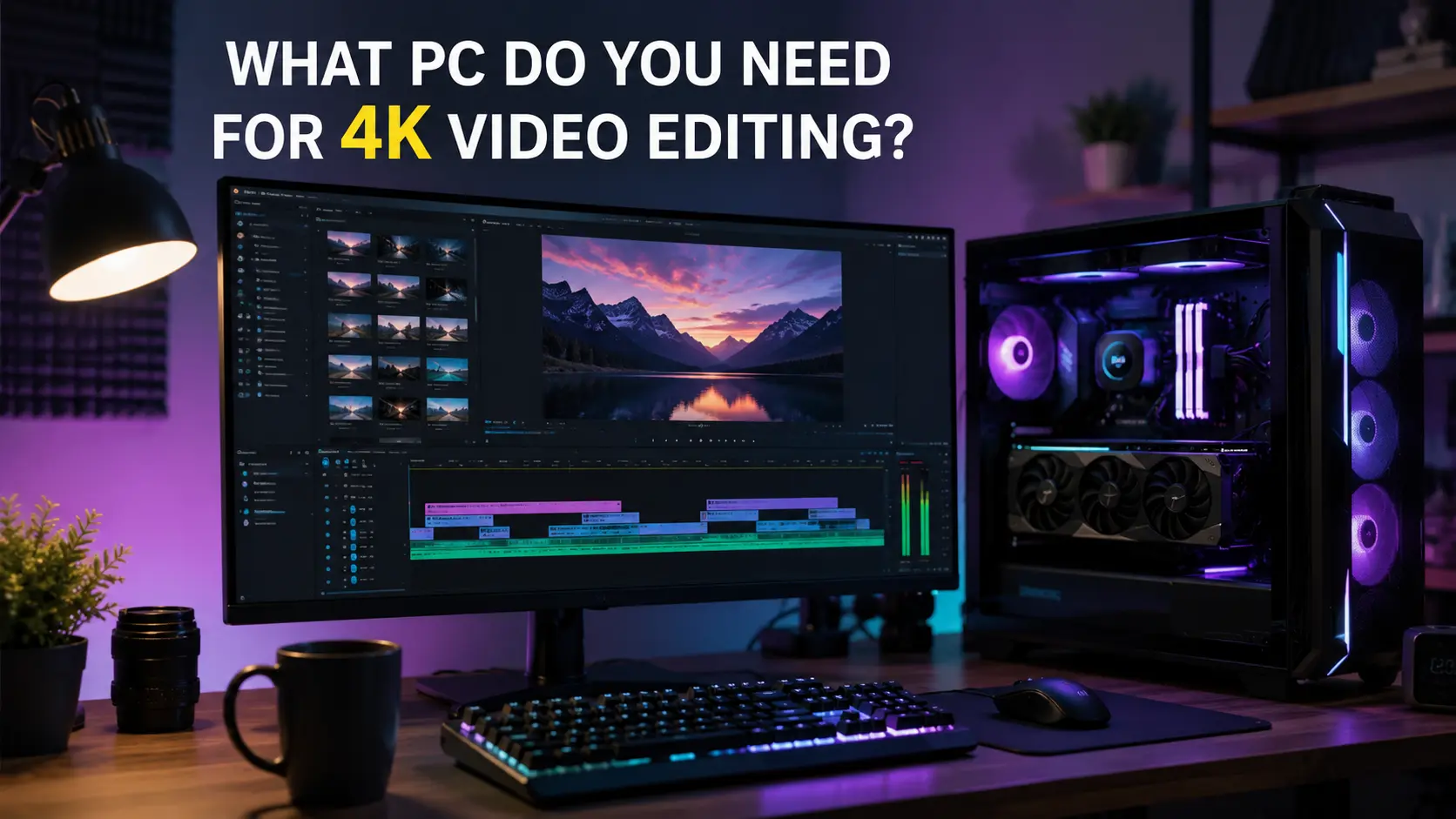
Most guides to editing PCs open by telling you to buy the fastest processor you can afford. That is usually the wrong advice, and it is expensive advice.
Choppy 4K playback is far more often a memory problem or a drive problem. Here is what to spend on, in the order that actually helps.
Editing and rendering are two different jobs
This distinction explains most of the confusion.
- Editing is scrubbing the timeline, trimming clips, watching playback. It wants fast single-core speed, plenty of memory and a quick drive.
- Exporting is turning the finished timeline into a file. It wants many cores, or a hardware encoder.
If you spend eight hours editing and twenty minutes exporting, optimise for editing. Most people have that backwards and buy a many-core processor that sits mostly idle while they work.
What to buy, in order of impact
1. Memory — 32 GB minimum
This is the most common bottleneck and the cheapest to fix.
4K footage is large. Your editor keeps sections of the timeline in memory so it can play them back without stopping. With 16 GB it runs out and starts reading from disk mid-playback, which is exactly the stutter people blame on their processor.
32 GB is the floor for 4K. 64 GB if you work with multiple camera angles, heavy effects, or anything above 4K. Our RAM compatibility checker will confirm what your board takes before you order.
2. An NVMe drive for the footage
4K video is a lot of data per second, and a hard drive cannot always keep up. In our render performance calculator a hard drive scores half what an NVMe drive does, and that gap is felt most while scrubbing the timeline.
The arrangement that works well:
- NVMe for the project you are working on right now.
- A second drive for finished projects and archives. A hard drive is fine here and much cheaper per terabyte.
Work out the capacity with the storage requirement calculator. Footage adds up faster than people plan for.
3. A graphics card with a hardware encoder
Modern editors use the graphics card for effects, colour work and playback. More importantly, the card has a dedicated encoder chip that turns your timeline into a finished file far faster than the processor can.
You do not need an expensive card. You need a recent one. The encoder on a mid-range card is much the same as the one on a flagship — you are paying for rendering performance, not encoding.
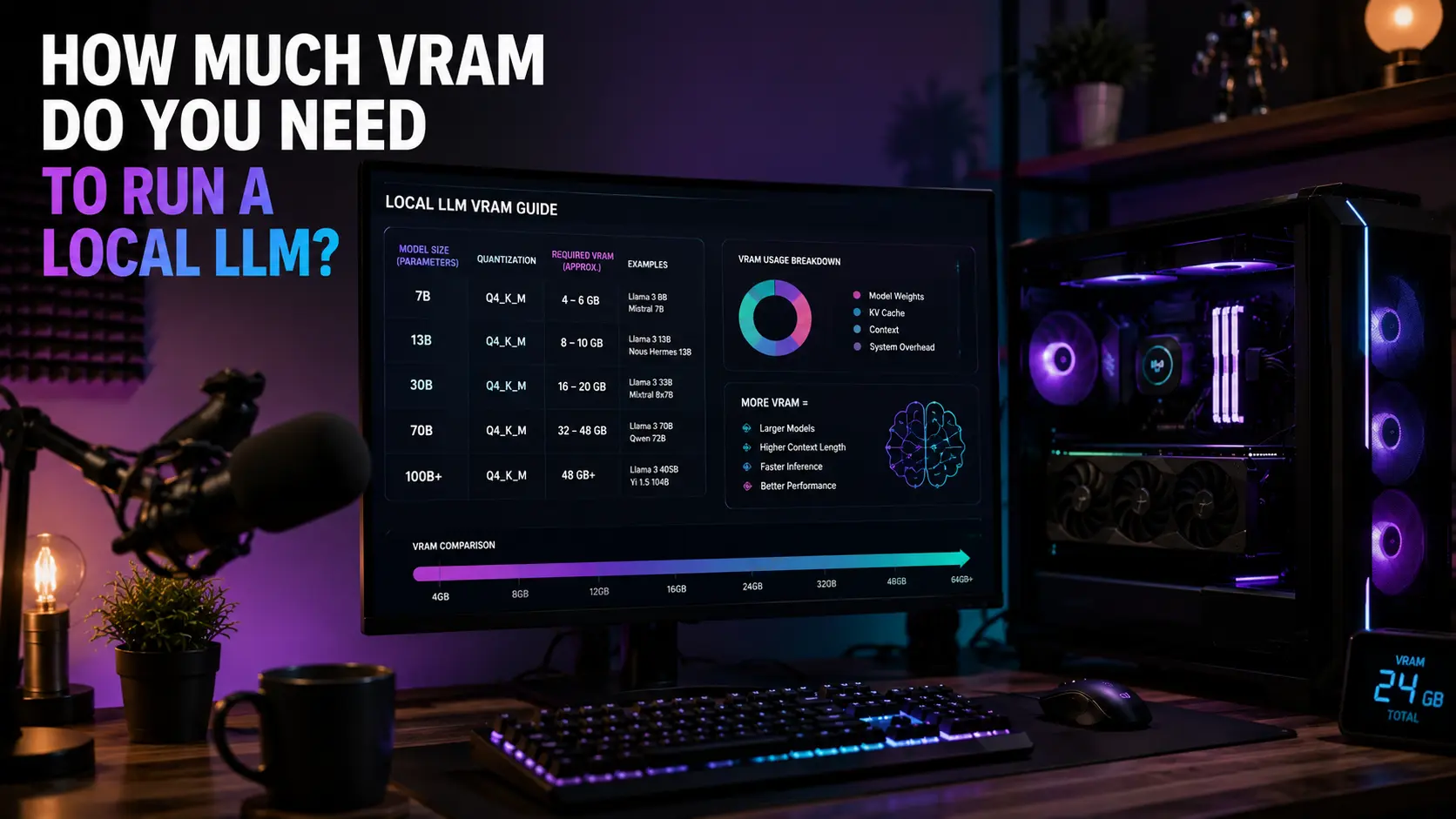
VRAM matters if you work at high resolution or use heavy effects. 8 GB is workable for 4K, 12 to 16 GB is comfortable. Compare options with the GPU comparison tool.
4. The processor — last, not first
A mid-range modern processor handles 4K editing without complaint. Single-core speed matters more than core count for the editing itself, and both AMD and Intel are strong there.
Core count only pays off if you export a great deal, and even then a hardware encoder often beats extra cores. Check whether your parts are balanced with the bottleneck calculator.
Three builds that make sense
| Tier | Memory | Storage | Graphics | Good for |
|---|---|---|---|---|
| Starter | 32 GB | 1 TB NVMe | 8 GB card | 4K from one camera, light effects |
| Comfortable | 32–64 GB | 2 TB NVMe + archive drive | 12–16 GB card | Multi-camera 4K, colour work |
| Heavy | 64 GB+ | 2 TB NVMe Gen5 + archive | 16 GB+ card | 6K and 8K, heavy effects, long timelines |
Notice that memory and storage move up the tiers before the graphics card does. That is deliberate, and it reflects where the bottleneck actually sits.
Fixes that cost nothing
Before buying anything, try these. They solve choppy playback more often than new hardware does.
- Lower the playback resolution. Every editor can play a timeline at half or quarter resolution while you work, then export at full. This is the single biggest improvement available and it costs nothing.
- Use proxies. Your editor makes small stand-in copies of your footage, you edit those, and it swaps the originals back in at export. Designed exactly for this problem.
- Move the cache off the system drive. Point it at your fast drive instead, and clear it occasionally.
- Turn on hardware decoding in your editor's settings. It is not always on by default.
- Render previews for effect-heavy sections rather than asking the machine to compute them live every time you scrub past.
The codec matters more than people expect
Not all 4K is equally hard to play.
- H.264 and H.265 from a camera or phone are heavily compressed. Small files, but the machine has to unpack every frame, which is work.
- ProRes and DNxHR are edit-friendly. Much larger files, far easier to play back smoothly.
If your footage stutters and your hardware is fine, converting to an edit-friendly format first often fixes it outright. You trade disk space for smooth playback, and disk space is cheap.
Frequently asked questions
Is 16 GB of RAM enough for 4K editing?
It works for short, simple timelines. It struggles with anything longer or more complex. 32 GB is the point where the problem stops being a daily annoyance.
Do I need a workstation graphics card?
No. A consumer card does the same job for editing. Workstation cards target certified drivers and specific professional applications.
AMD or Intel for video editing?
Both are fine. Intel has a hardware encoder built into many of its processors, which is handy as a fallback. AMD tends to offer more cores at a given price. Neither choice will hold you back.
Why is my export slow when editing feels fine?
Exporting uses different parts of the machine. Check that hardware encoding is enabled — software encoding on the processor is several times slower and is often the default.
How much storage do I actually need?
More than you think. 4K footage runs from a few gigabytes to tens of gigabytes per hour depending on the camera. Work out your own figure with the storage calculator.
The short version
Buy memory first, a fast drive second, a recent graphics card third, and a mid-range processor last. Try proxies and lower playback resolution before you buy anything at all. Most choppy 4K timelines are fixed by a setting rather than a purchase.
Check a build with the video editing PC calculator.
Comments
No comments yet. Start the conversation.